Asset editor
You need a broadly recognized mesh format for inspection or cleanup in a traditional 3D package.
Use the OBJ handoff when editable vertices, faces, normals, and UVs matter more than scene animation.
fbx to objFormat workflow
gltf to obj conversion is useful when a downstream editor, renderer, or fabrication workflow expects the widely supported OBJ format. Start with a representative asset, then inspect the exported geometry before using it elsewhere.


 GLTF source
OBJ result
GLTF source
OBJ result
Drag the divider to compare the source asset with the exported mesh view.
The formats describe 3D content differently, so conversion can preserve the visible shape while changing how scenes, materials, and animation data are represented.
GLTF
OBJ
GLTF
Efficient delivery of complete 3D assets
OBJ
Portable mesh exchange for modeling and rendering
GLTF
Meshes, primitives, normals, and vertex attributes
OBJ
Vertices, texture coordinates, normals, and faces
GLTF
Can represent nodes, transforms, and relationships
OBJ
Usually flattened into object and group records
GLTF
PBR materials can be embedded or referenced
OBJ
Material definitions commonly use a separate MTL file
GLTF
May be embedded in a binary package
OBJ
Usually remain external image files
GLTF
Can carry animation channels and skinning
OBJ
Does not provide a standard animation system
GLTF
Often a single binary GLB or paired GLTF assets
OBJ
Typically an OBJ plus optional MTL and texture files
GLTF
Web viewers and modern real-time pipelines
OBJ
Broad compatibility with traditional 3D tools
These examples show the kinds of objects worth checking after export: a product form, a character mesh, and a scene with multiple visible parts.
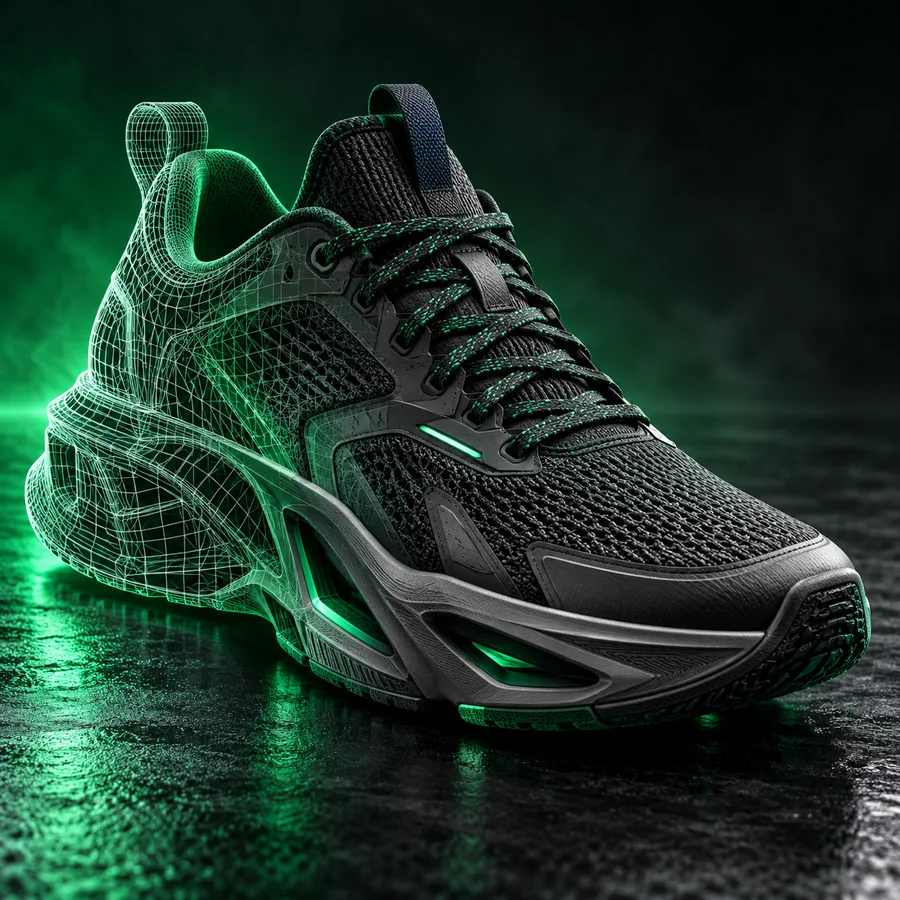 1
Product
1
Product
 2
Character
2
Character
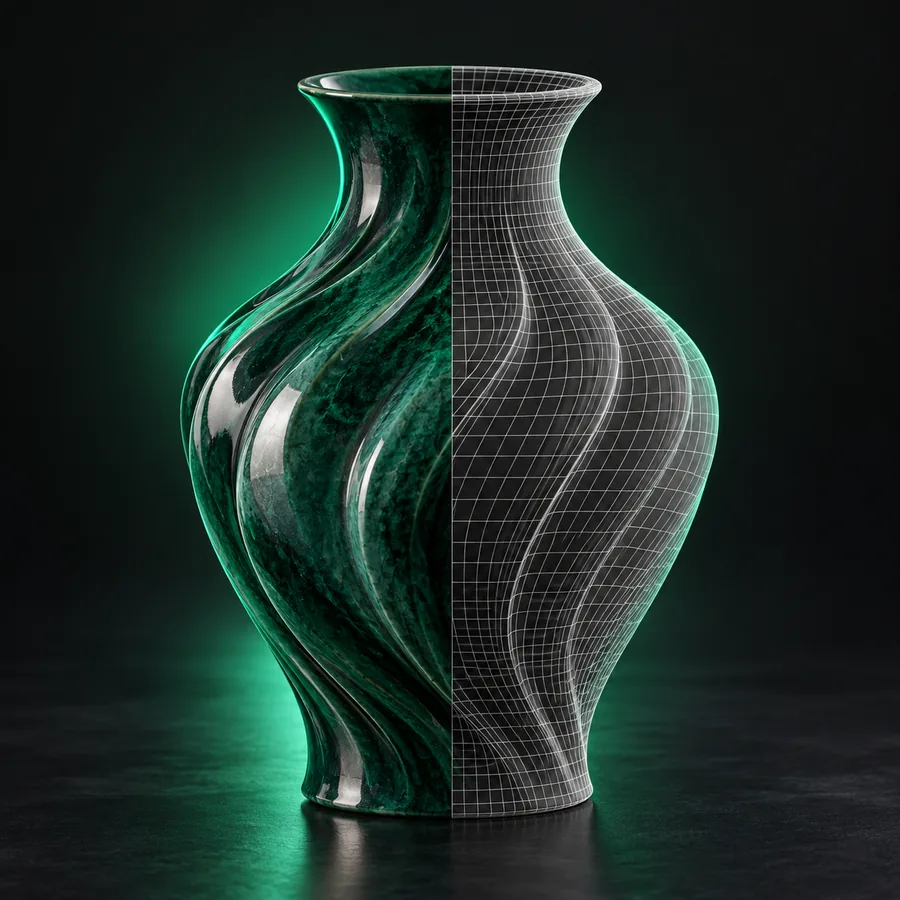 3
Scene
3
Scene
The best next format depends on the software waiting for the asset and whether you need animation, materials, or a simpler mesh exchange.
You need a broadly recognized mesh format for inspection or cleanup in a traditional 3D package.
Use the OBJ handoff when editable vertices, faces, normals, and UVs matter more than scene animation.
fbx to objYou want to move a triangulated or polygonal model into a tool that accepts common interchange meshes.
Check scale, watertightness, and face direction after conversion before preparing the model.
glb to stlYour target application prefers a scene format with richer hierarchy or animation support.
Compare the available handoff before flattening a GLTF scene into OBJ geometry.
glb to fbxUse the slider to translate a source file size into exact kilobyte and byte values before planning a transfer or archive.
KB
bytes
Specific asset descriptions make it easier to compare the exported mesh against the source and spot missing materials or scene details.
Mesh
1
Convert a GLTF product model to OBJ, keeping the complete outer mesh, UV layout, normals, and object proportions.
Character
2
Convert a stylized GLTF character to OBJ for mesh inspection, preserving separate visible parts and the original proportions.
Scene
3
Convert a GLTF scene to OBJ for downstream editing, retaining visible objects, face direction, and useful material references.
Adapt each prompt by naming the asset, the intended editor, and the specific properties you need to verify.
Send a representative asset through the Glbtoobj workflow, then verify geometry, scale, UVs, and material references before handing the OBJ to your next tool.
Convert a GLTF modelOBJ is accepted by many established modeling, rendering, and inspection tools. Converting can make a mesh easier to edit or exchange when the receiving application does not support GLTF well.
Not always. OBJ is primarily a mesh exchange format, so node relationships, animation, skinning, and some scene-level information may be flattened or omitted during conversion.
The visible result depends on how the source materials and textures are represented and how the receiving tool reads the exported files. Check for the OBJ, its MTL reference, and any required image textures together.
Yes. Compare object count, proportions, face direction, normals, UVs, and material appearance. A visual check in the destination application can reveal differences that are not obvious from the file names alone.