3D artist
An artist passes a prop to a teammate who will edit its material.
Send the OBJ with its material library and source images so the teammate can inspect each reference.
glb to obj with mtlA glb to obj with texture workflow is more than a mesh export. Use this guide to check the image maps, material references, and UV coordinates that an OBJ workflow needs.

Start with the source GLB and a way to inspect its geometry, UVs, and materials. A textured OBJ handoff may need several files, not just one.
These are format and handoff limits to check before relying on a converted asset; they are not guarantees that a particular tool will repair the source.
OBJ describes geometry and can name materials, but texture images normally travel as separate files referenced by an MTL.
WorkaroundKeep the OBJ, MTL, and referenced images together, then reopen the OBJ from its delivery folder.
An image texture needs usable UV coordinates on the mesh. Exporting another file format cannot invent a reliable unwrap for every model.
WorkaroundInspect or create UVs in a 3D editor before export.
GLB can use physically based material properties that a basic OBJ and MTL workflow does not represent in the same way.
WorkaroundCompare the asset in its destination viewer and adjust or bake materials when visual fidelity matters.
Use a textured chair as a test: the goal is not merely an OBJ that opens, but a model whose surface image survives the handoff.
Open the chair and confirm that its wood grain comes from an image map rather than only a base color. Check that the seat, legs, and back have UVs and that no image is missing.
Choose OBJ export in a tool that supports your required material handoff. Put the OBJ, any generated MTL, and every referenced image in one folder; do not assume the image is embedded in the OBJ.
Import the exported OBJ into the destination application. Check the grain on all sides, inspect the MTL image paths, and compare the result with the GLB before sending the folder onward.
Illustrative comparison, not a verified conversion result. Reopen your own export to confirm that its textures resolve.
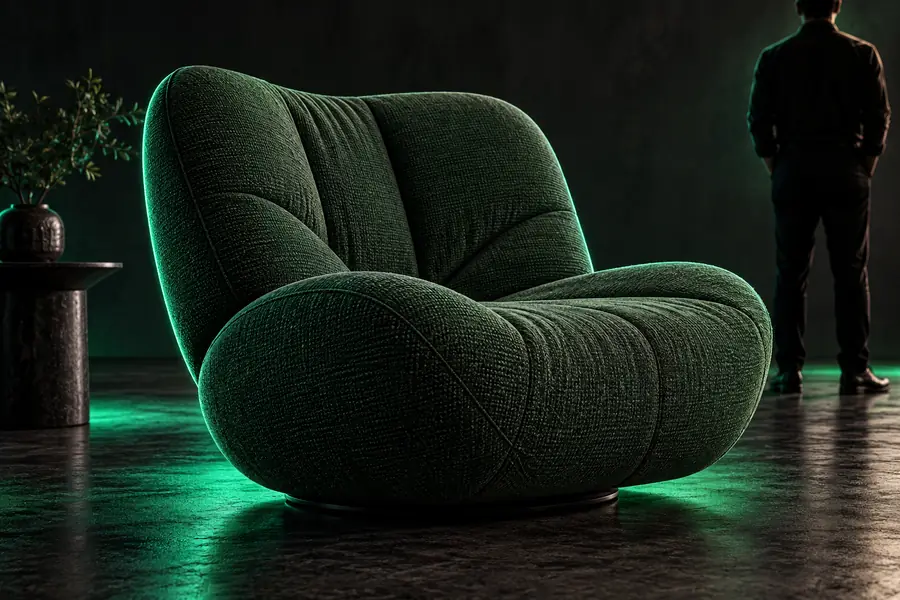
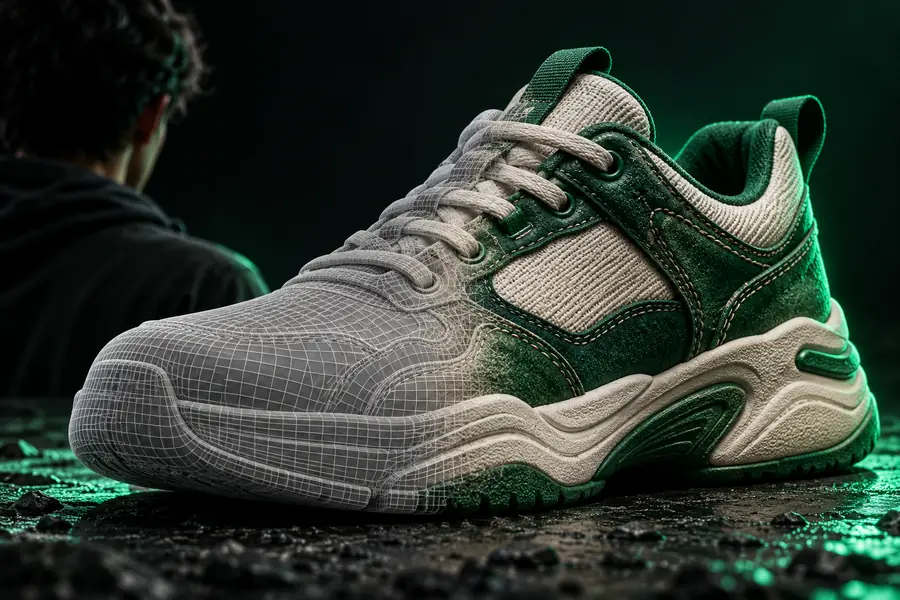
The right handoff depends on what the next person or application expects to receive.
An artist passes a prop to a teammate who will edit its material.
Send the OBJ with its material library and source images so the teammate can inspect each reference.
glb to obj with mtlA reviewer needs to know whether a flat-looking export lost an image or used a solid color from the start.
Compare the source material with the reopened OBJ before requesting a new export.
glb to obj with colorA collaborator receives a model folder produced through a browser workflow.
Test the delivered folder locally, since a successful download does not prove that image paths resolve.
glb to obj onlineFor glb to obj with texture, compare what the source can contain with what the destination normally needs. Export settings and application support still determine the actual result.
GLB source
OBJ handoff
GLB source
Stored inside the GLB container
OBJ handoff
Stored in the OBJ file
GLB source
May be present on the mesh
OBJ handoff
Can be written as texture coordinates; inspect the export
GLB source
Can be packaged within the GLB
OBJ handoff
Usually supplied as separate image files
GLB source
Defined through glTF material data
OBJ handoff
May reference material names defined in an MTL file
GLB source
Internal resources need no adjacent image folder
OBJ handoff
MTL references must resolve to the delivered images
GLB source
Can include physically based material properties
OBJ handoff
May require adjustment or baking for a comparable appearance
Glbtoobj points you to a 3D scene workspace. Before depending on any export, check its available formats, then verify geometry, UVs, materials, and image references in your destination application.
Open scene workspaceThe OBJ may have arrived without its MTL or the image files named in that MTL. It may also lack usable UV coordinates. Check the complete export folder and reopen the OBJ from there.
No. An MTL can point to an image, but the referenced image must also be available at a path the receiving application can resolve. Verify the image files and their names alongside the MTL.
Not necessarily. GLB materials can include properties that do not translate directly to a basic OBJ and MTL handoff. Compare the reopened model visually and consider baking textures when a close match is required.
Import the exported OBJ into the application where it will be used, with its MTL and images in place. Inspect several surfaces and compare them with the GLB; a successful file open confirms geometry, not necessarily the texture.