Browser conversion
Move your model with glb to obj online
Use glb to obj online when you need to take a packaged GLB asset and prepare it for an OBJ-based workflow. The route keeps the task focused on format conversion, file inspection, and a clear handoff.

Related 3D file paths
How the online workflow works
The process is intentionally short: identify the source, hand off the conversion request, then review the resulting OBJ in the software where you plan to use it.
-
1
Prepare the GLB
Choose the GLB asset you want to move and confirm that it is the intended source file. A clean source makes later inspection easier.
-
2
Start the conversion
Send the conversion request through the focused workflow. The goal is a usable OBJ handoff rather than a broad collection of unrelated export settings.
-
3
Inspect the OBJ
Open the result in your target 3D application and check the mesh, scale, orientation, materials, and any accompanying files before continuing.
What the route connects
This conversion path is defined by the two formats at its edges and the single direction between them.
- 1 GLB source and OBJ destination
- 2 file formats
- 2 A focused path from GLB into OBJ
- 1 conversion direction
- 3 Built for polygonal model workflows
- 3D asset type
From packaged asset to editable handoff
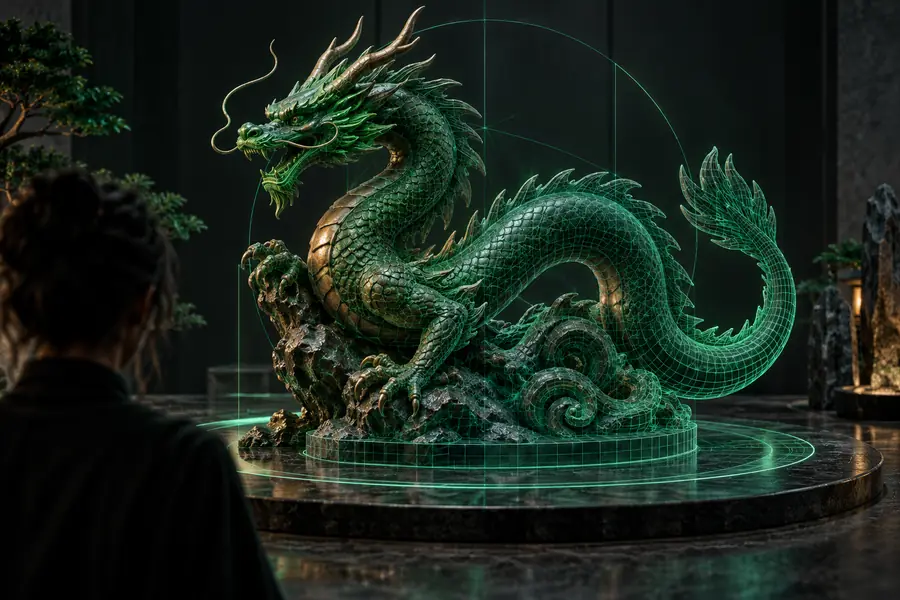
The source and result represent different packaging approaches. The visual comparison is a reminder to verify the exported mesh and supporting data in your own application.
- GLB source
- OBJ handoff
Review geometry and material references after conversion.

Limits and edges to account for
An online GLB-to-OBJ route can simplify the format change, but it cannot remove the differences between the source package and the destination workflow.
-
Materials may not travel as one file
OBJ commonly relies on a separate MTL file and external texture images, while GLB can package related data together.
WorkaroundKeep the OBJ, MTL, and texture files together and relink missing paths in the destination application.
-
Animation is not the main OBJ strength
OBJ is primarily a static geometry format, so animation data from a GLB should not be assumed to survive as an editable animation system.
WorkaroundKeep the original GLB for animated use and use OBJ for the static mesh handoff.
-
Scene structure can change
A GLB may contain multiple objects, transforms, cameras, or scene-level organization that does not map neatly into a basic OBJ export.
WorkaroundInspect object names, pivots, scale, and orientation after import, then reorganize the result if needed.
-
Textures still need verification
A converted mesh can open correctly while its texture references, UV interpretation, or color appearance require adjustment.
WorkaroundOpen the result in the target tool, check UVs and paths, and reconnect image maps when necessary.
GLB source versus OBJ handoff
Use this quick comparison to decide whether an online conversion is suitable for the next stage of your work.
GLB source
OBJ handoff
Role
GLB source
Source asset for the conversion
OBJ handoff
Destination asset for downstream import
Packaging
GLB source
Can package related scene data together
OBJ handoff
Often uses OBJ plus MTL and texture files
Geometry
GLB source
Stores polygonal model data
OBJ handoff
Stores polygonal model data
Animation
GLB source
May be used in animated 3D workflows
OBJ handoff
Primarily suited to static geometry
Material handling
GLB source
May keep related data within the asset package
OBJ handoff
May require separate material and image references
Best next check
GLB source
Confirm the intended source scene or model
OBJ handoff
Verify mesh, scale, UVs, and linked resources
Typical handoff question
GLB source
What should be preserved from the package?
OBJ handoff
What does the target application need to read correctly?
Ready to move a GLB into OBJ?
Take the focused conversion route
Start with the GLB you actually need to use, send the conversion request, and validate the resulting OBJ in the application that comes next. Keeping the source file available gives you a reliable fallback when materials, animation, or scene structure need more control.
Convert my GLB- Focused GLB-to-OBJ handoff
- Practical checks for materials and geometry
- Keep the original source available
GLB to OBJ online FAQ
It refers to using an online workflow to convert a GLB model into an OBJ file. The result is intended for importing the geometry into software or pipelines that accept OBJ.
OBJ is supported by many 3D applications and is often useful when a project or tool specifically requests that format. An online route can be convenient when you want a focused handoff without setting up a full local conversion workflow.
Texture handling depends on the source asset and the conversion result. Because OBJ commonly uses an MTL file and separate image files, keep related outputs together and verify the material paths after import.
OBJ is mainly a static geometry format, so animation from the original GLB should not be expected to remain as an editable OBJ animation. Keep the original GLB when animation or scene behavior matters.
Open the OBJ in the software where you plan to use it and inspect geometry, scale, orientation, UVs, materials, and texture links. Also check whether multiple objects or scene elements were reorganized during the handoff.